File Explorer Perspective
Icon: 
Keyboard shortcut: CTRL-Shift-E
Description
The File Explorer perspective is where you’ll spend most of your time in Hop Gui. This is where pipelines and workflows are built, tested and run, and where you’ll perform most of your file operations.
The project tree on the left shows the files in your project. Files you open appear as tabs in the editor area next to the tree. This perspective contains handlers for the most common file types known to Hop. These are obviously hwf (workflows) and hpl (pipelines), but also many text and document formats, listed in File types. The File Explorer perspective is also where you’ll manage version control for your projects through Git integration.
Older Hop versions had a separate Data Orchestration perspective for editing pipelines and workflows. It has been merged into the File Explorer perspective.
Its CTRL-Shift-D shortcut now opens the Database perspective; pipeline and workflow editing stays on CTRL-Shift-E.
|
| Even though fully functional, the editor for most file types in the File Explorer is rather basic. Expect these to evolve in the next Hop releases, or check the code contribution guide if you’d like to help us improve Hop by contributing file editors. |
Editing pipelines and workflows
Open or create a pipeline or workflow and it appears in a new tab in the editor area, with its own graph toolbar above the canvas.
An optional Spoon-style palette tree of transforms or actions can be shown on the left of the canvas with the palette button on the graph toolbar (hidden by default). See the palette tree in the popup dialog page.
For more information on how to get started with pipelines, see the Pipelines getting started guide.
For more information on how to get started with workflows, see the Workflows getting started guide.
File types
Besides pipelines (hpl) and workflows (hwf), the File Explorer has handlers for these file types:
| Type | Files | Notes |
|---|---|---|
JSON |
|
Has a Pretty-print JSON button. |
CSV |
|
|
Text |
|
|
Text files without an extension |
|
Matched by file name. |
XML |
|
|
YAML |
|
|
SQL |
|
|
Markdown |
|
Has a preview. |
Shell script |
|
|
Windows batch and command files |
|
|
Python |
|
|
HTML |
|
Shown rendered, not as text. |
|
Shown rendered, not as text. |
|
SVG |
|
|
Log |
|
|
SAS 7 BDAT |
|
|
Excel |
|
|
Parquet |
|
|
Archive |
|
To see any other file, or one of these as plain text, use Open as text in the right-click menu.
Editing text files
The editor of the text based file types has the usual editing options, including undo and redo, cut, copy and paste, and select all.
Find and replace
-
Find,
Ctrl+F(Cmd+Fon macOS): Search for text in the file. -
Find/Replace,
Ctrl+H(Cmd+Hon macOS): Search for text and replace it.
Both are in the right-click menu of the editor. They are also in the text editor toolbar, which is shown when the option Show text editor toolbar is enabled in the Configuration perspective.
Pretty-print JSON
The toolbar of a JSON file has a Pretty-print JSON button. It formats the text of the editor. When the text is not valid JSON, it shows the error JSON format error instead and leaves the text as it is.
Markdown preview
The toolbar of a Markdown file has a button Show the rendered version of this Markdown file in a preview tab.
It opens a tab called <file> (preview) with the rendered file.
Pressing the button again refreshes that tab and selects it.
While the preview tab is open, it also follows the editor: it is rendered again a moment after you stop typing.
The preview tab closes together with the tab of the Markdown file.
File operations
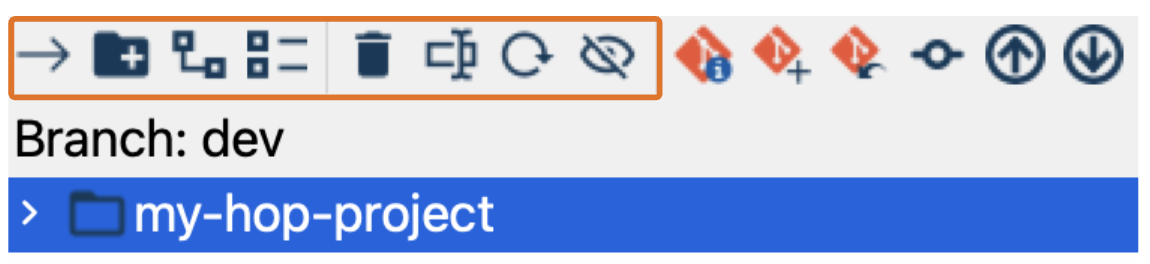
The file operations are available through a number of toolbar options:
-
Open selected file: Use the right arrow or double-click to open a selected file. You can also open a file simply by double-clicking it. The file is opened in a new tab in the editor area; pipelines and workflows open in their graph editor. Select multiple files with
Ctrl(Cmdon macOS) orShiftto open them all at once. -
Create folder: Add a new folder. This works on a single selected folder.
-
Expand All: Display all nested folders in the directory tree.
-
Collapse All: Hide all nested folders in the directory tree.
-
Delete: Remove the selected files and folders.
-
Rename: Rename a file or folder. Only one file or folder at a time.
-
Refresh: Refresh the file list.
-
Show or hide files: Show or hide files or directories.
-
Select opened file (
ALT+F1): Select the file of the active editor tab in the tree.
New pipelines, workflows and files are created from the right-click menu rather than the toolbar.
Right-click menu
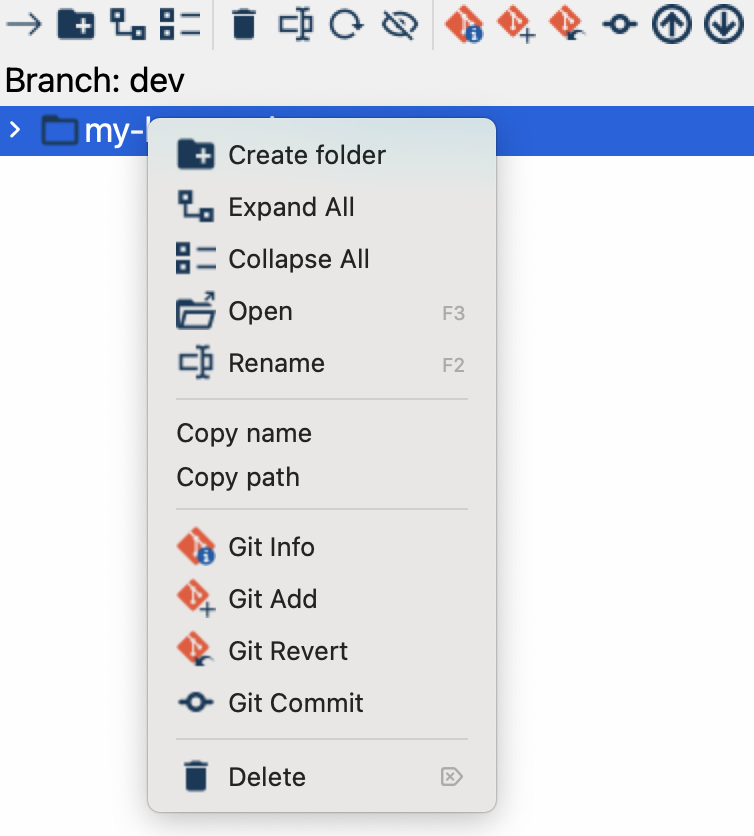
Right-click a file or folder in the tree to open this menu. Options that don’t apply to the selection are greyed out.
-
Create pipeline…, Create workflow…, Create file…: Create a new empty pipeline, a new workflow with a Start action, or a new file inside the selected folder and open it. For a file you choose its name and file type. Only available when one folder is selected.
-
Create folder: Create a new folder inside the selected folder. Only available when one folder is selected.
-
Expand All, Collapse All: Show or hide all nested folders in the tree.
-
Refresh folder: Read the selected folder, or the folder of the selected file, again from disk.
-
Open: Open the selected files. A file opens in a new tab in the editor area; pipelines and workflows open in their graph editor.
-
Open as text: Open the selected file as plain text, whatever its type. Only available for a single file.
-
Open in explorer: Show the selected file or folder in the file manager of your operating system. Only available for local files.
-
Open in VFS File Explorer: Open the location of the selection in the VFS File Explorer.
-
Rename: Change the name of the selected file or folder. Only one at a time.
-
Copy name, Copy path: Copy the name or the full path of the selection to the clipboard, one line per selected item.
-
Find references: Search the project for the files that use the selected pipeline or workflow. The results are listed in a tab at the bottom, where a double-click opens them. Only available for a single pipeline or workflow.
-
Git Info, Git Add, Git Revert, Git Clean, Git Commit: The Git operations described in Git options in the right-click menu.
-
Delete: Remove the selected files and folders. Make sure to use this carefully, as it permanently deletes them from your directory.
Plugins add their own options to this menu:
-
Edit as Hop install spec, with the Marketplace plugin: Open a YAML or JSON file in the Hop install spec editor. It does nothing for other files.
-
Lint This File, Lint This Folder, with the Lint plugin: Check the selected file or folder against the lint rules.
-
Exclude From Linting…, with the Lint plugin: Ask for a reason and exclude the selection from linting in the project’s lint policy. When the selection is already excluded, it is included again.
Toggling the File Explorer Panel
When the File Explorer perspective is already active, clicking the File Explorer button in the perspectives toolbar (left side) will toggle the visibility of the file explorer panel (project tree). This allows you to maximize the workspace area when you don’t need to see the file tree.
-
When the panel is visible: Clicking the File Explorer button hides the panel, maximizing the editor area.
-
When the panel is hidden: Clicking the File Explorer button shows the panel again, restoring the split view.
| The tooltip on the File Explorer button will indicate when you can toggle the panel: "File Explorer (Ctrl+Shift+E). Click the folder to show/hide the project tree" |
Configuration Options
The File Explorer perspective can be configured through the Configuration perspective under the Plugins tab. The following options are available:
-
The initial depth to load not lazily: Controls how many folder levels are loaded immediately when opening folders in the file explorer tree.
-
The maximum file size to load: Sets the maximum file size (in MB) that will be loaded when opening files in the explorer.
-
Show file explorer panel by default: When enabled, the file explorer panel (project tree) is shown by default when opening the explorer perspective. When disabled, the panel starts hidden, giving you more workspace for editing files.
-
Open help pages in: Where Help buttons and F1 open documentation: the system browser, a tab in this perspective, or a dialog on top of the current window.

Git integration
Description
If the git plugin (folder plugins/misc/git) is installed, the file explorer will look for a .git/config file in the project home folder. If this exists the explorer perspective will start to color code the files listed:
-
red: an unstaged add, copy, rename, or content change.
-
green: a staged add, copy, or rename.
-
blue: a staged content change.
-
black: a deleted path, staged or not.
-
gray: the file is ignored by git.
See Working with git for all the git options in Hop Gui.
Git
Git info
The "Git Info" icon in the toolbar will be enabled if there is information regarding the file or folder that is selected. If you click on it, you’ll be able to see all sorts of information regarding the git history in a new tab:
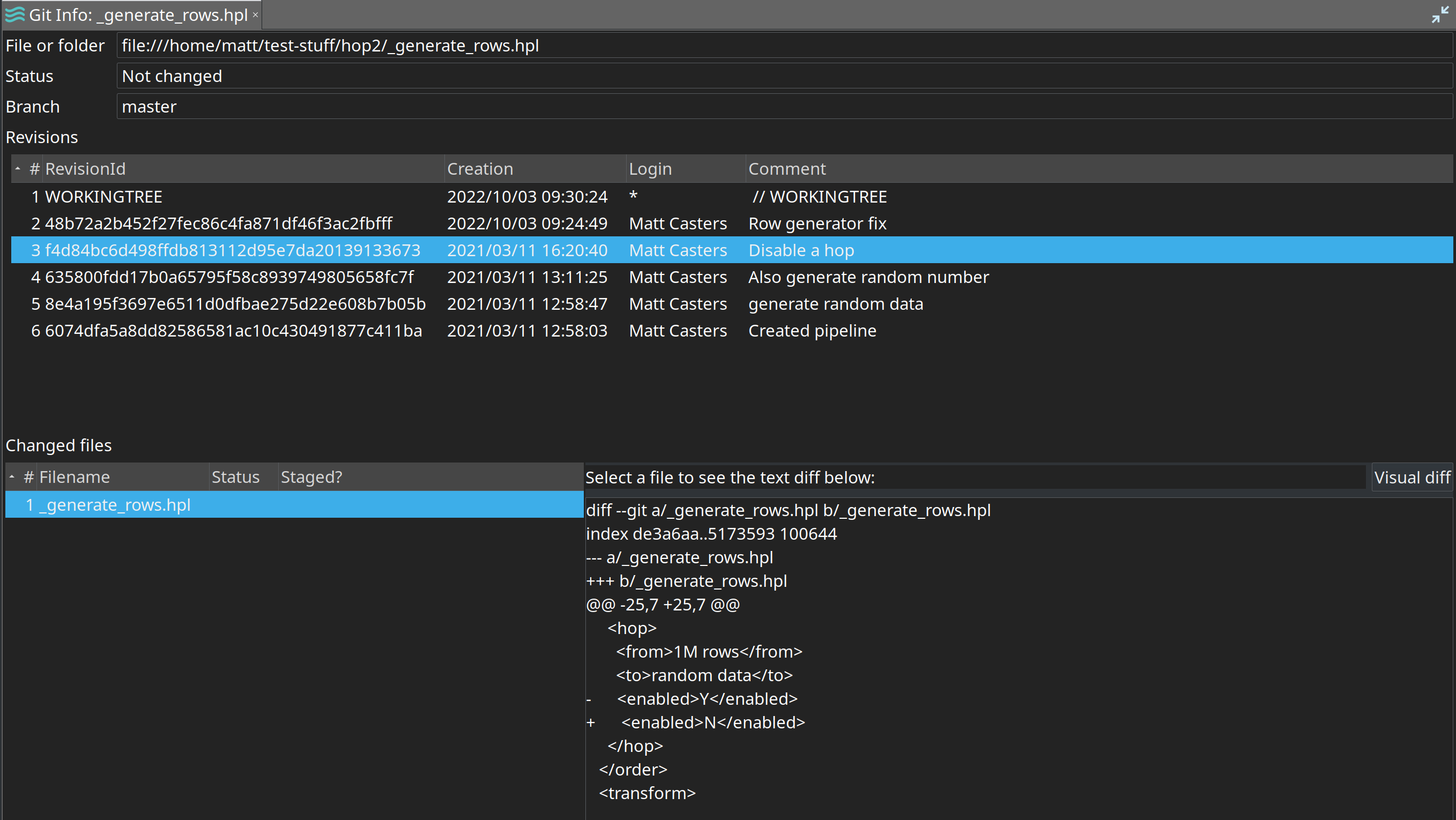
Select a revision to list the files it changed under Changed files. Select a file to see its changes as text on the right. For a pipeline or workflow, the Visual diff button opens 2 new tabs with the pipeline or workflow before and after the selected revision.
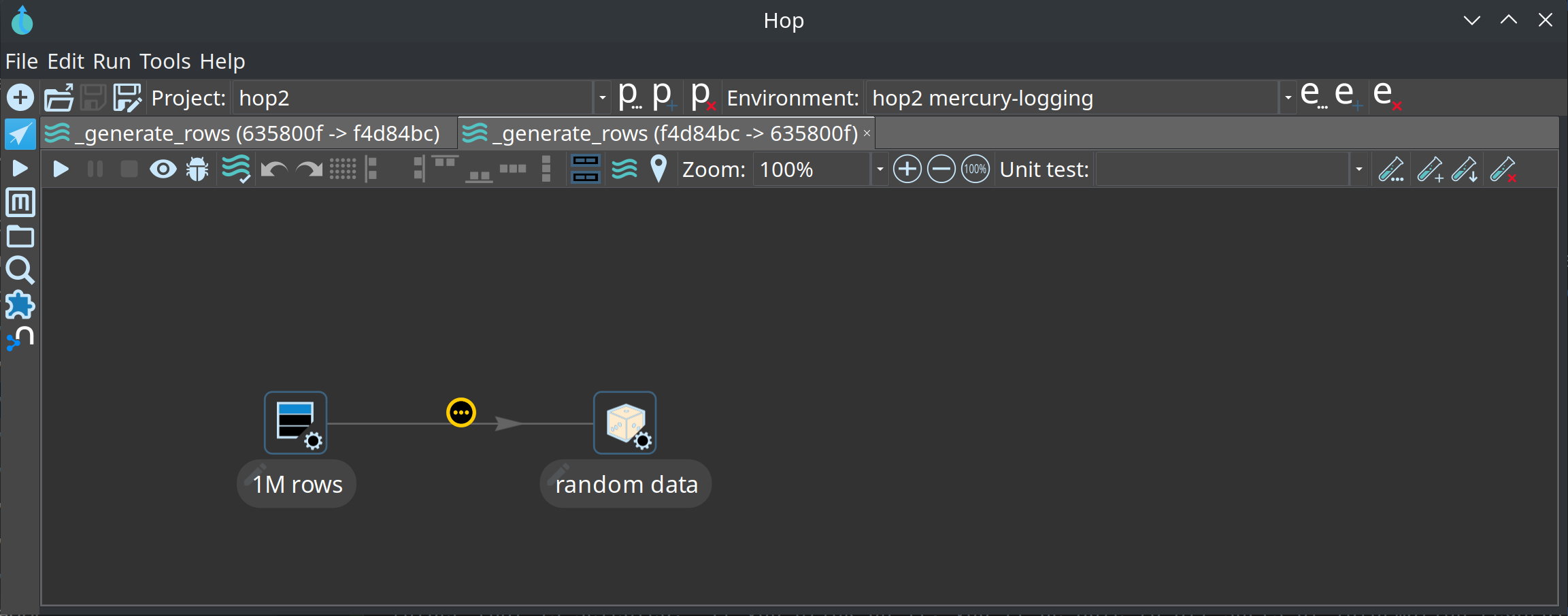
Small information icons will be added to the various transforms, actions and hops to indicate if they were changed, deleted or added.
Git options in the right-click menu
When the project is in a Git repository, the right-click menu also has these options:
-
Git Info: Displays detailed information about the Git status of the selected file, including any recent changes.
-
Git Add: Stages the selected file(s) for commit, meaning the changes are prepared for inclusion in your next Git commit.
-
Git Revert: Restores modified files in the selection from the last committed version (HEAD). A new staged file is only unstaged and stays on disk; deleting it is Git Clean. A dialog lets you pick the files.
-
Git Clean: Deletes files that git does not track from disk, after you pick them in a dialog.
-
Git Commit: Opens the Git commit perspective, where you review your changes and commit them with a message. In Hop Web it opens a commit dialog instead.
Git operations
Here are the basic git operations that are supported:
-
Git Info: show the git status and history of the file or folder.
-
Git Add: stage the file to include it in a commit.
-
Git Revert: restore modified files from HEAD. A new staged file is only unstaged and stays on disk.
-
Git Clean: delete files git does not track.
-
Git Commit: open the Git commit perspective to commit your changes. In Hop Web it opens a commit dialog instead.
Push, pull and the branch operations are in the branch menu of the status bar and in the Git perspective.
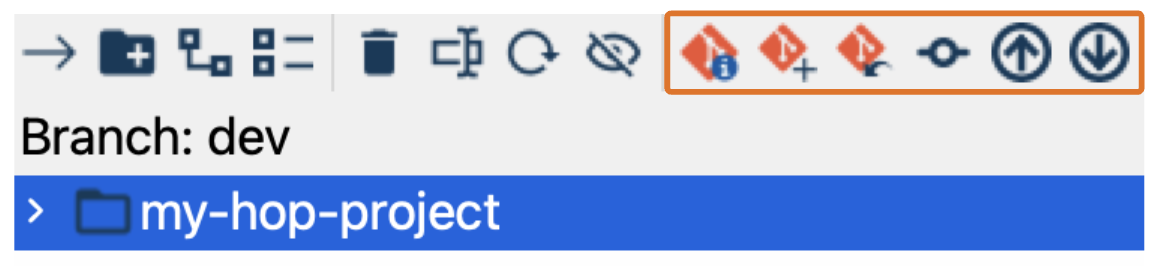
You can access these operations from the toolbar above the file explorer tree: