
Import Kettle (PDI) Projects in Apache Hop
As stated in the Q&A, Apache Hop used Kettle (aka Pentaho Data Integration or PDI) as a starting point in late 2019. A lot has happened in the meantime on both Apache Hop and Pentaho Data Integration.
Compatibility with Kettle/PDI was never a goal for Apache Hop, but since a lot of organizations have invested vast amounts of resources in Kettle/PDI project development, the Apache Hop community provides a way to import Kettle/PDI code into Hop and convert the imported code the Hop ways of working.
Imported Items
-
jobs: convert to Workflows (kjb to hwf), job entries to actions
-
transformations: convert to Pipelines (ktr to hpl), steps to transforms
-
kettle.properties: import to project variables
-
shared.xml: extract relational database connections to Hop relational database connection metadata objects
-
jdbc.properties: extract JNDI (simple-jndi) relational database connections to Hop relational database connection metadata objects
-
connections in jobs and transformations are extracted and converted to Hop relational database connection metadata objects
-
import jobs, transformations and other files into a Hop project (selected or bootstrapped in specified folder)
-
repository references are extracted and converted to file references
-
SFTPPut steps: the server, credentials and proxy settings of the step are extracted into an SFTP Connection metadata object, and the transform is pointed at it by name. Steps talking to the same server share one connection.
Known limitations
-
no connection cleanup: only 1 copy of database connections with the same name but different configurations is kept. Names that only differ by case (Kettle was case-insensitive) are collapsed to one spelling.
-
no metastore import
Usage
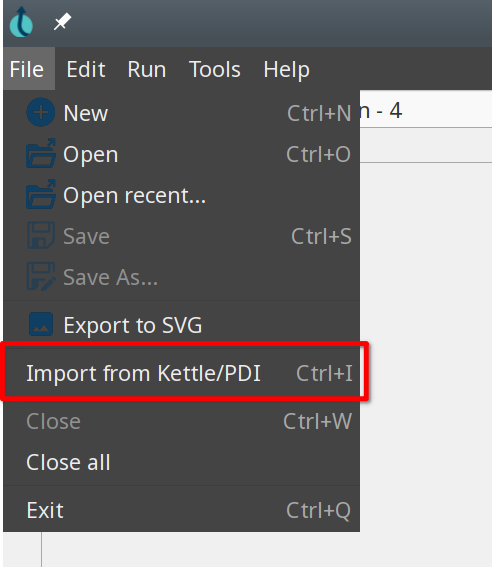
To import your Kettle/PDI projects in Hop, select File → Import from Kettle/PDI or press CTRL-i.
The dialog has three tabs: Source, Target, and Metadata. Import and Cancel stay at the bottom of the window.
Source
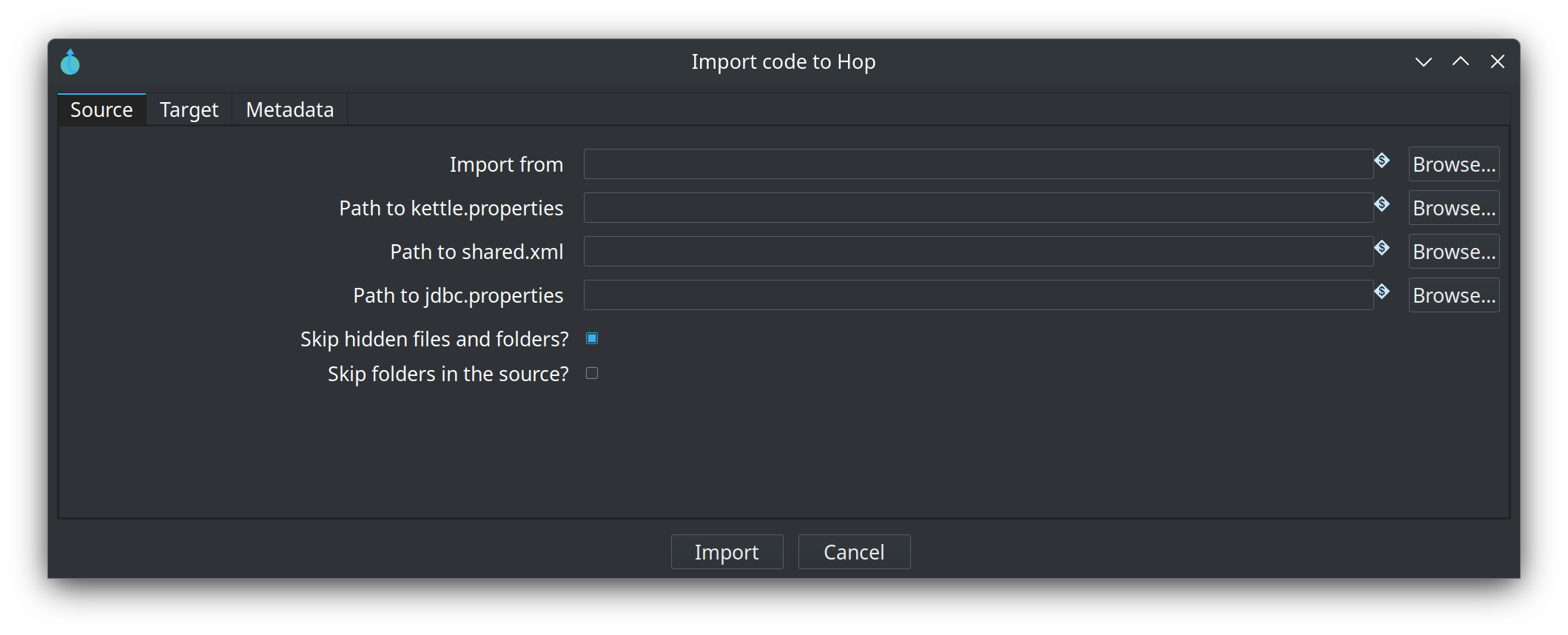
| Option | Description | Default |
|---|---|---|
Import from |
The folder to import Kettle/PDI jobs and transformations from |
- |
Path to kettle.properties |
Path to a kettle.properties file. All properties in this file will be imported as variables in the Hop project. |
- |
Path to shared.xml |
Path to a shared.xml file. All database connections in this file will be imported as Hop relational database connection metadata objects in the specified Hop project or folder. |
- |
Path to jdbc.properties |
Path to a jdbc.properties file. All Kettle/PDI JNDI database connections in this file will be imported as Hop (generic) relational database connection metadata objects in the specified Hop project or folder. |
- |
Skip hidden files and folders? |
Exclude hidden files and folders such as |
Selected |
Skip folders in the source? |
Exclude the sub-folders of the source folder from the import |
Selected |
Target
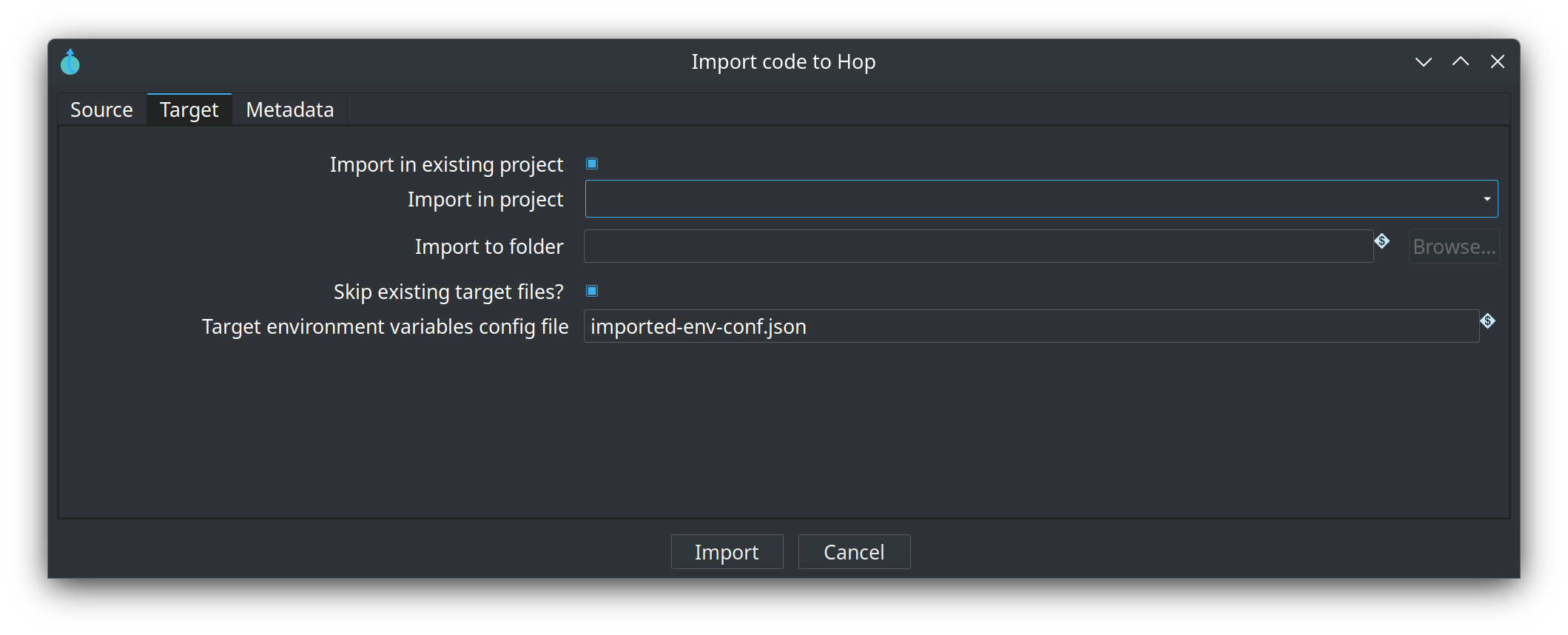
| Option | Description | Default |
|---|---|---|
Import in existing project |
Check to import into an existing project, uncheck to import into a folder |
Selected |
Import in project |
Dropdown list of available projects to import the Kettle/PDI project into |
- |
Import to folder |
Path to import the Kettle/PDI project to. All imported items will be imported into a Hop project in this folder. Only available when Import in existing project is unchecked. |
- |
Skip existing target files? |
Skip files that are already present in the target folder |
Selected |
Target environment variables config file |
Name of the environment configuration file the variables from |
|
Metadata
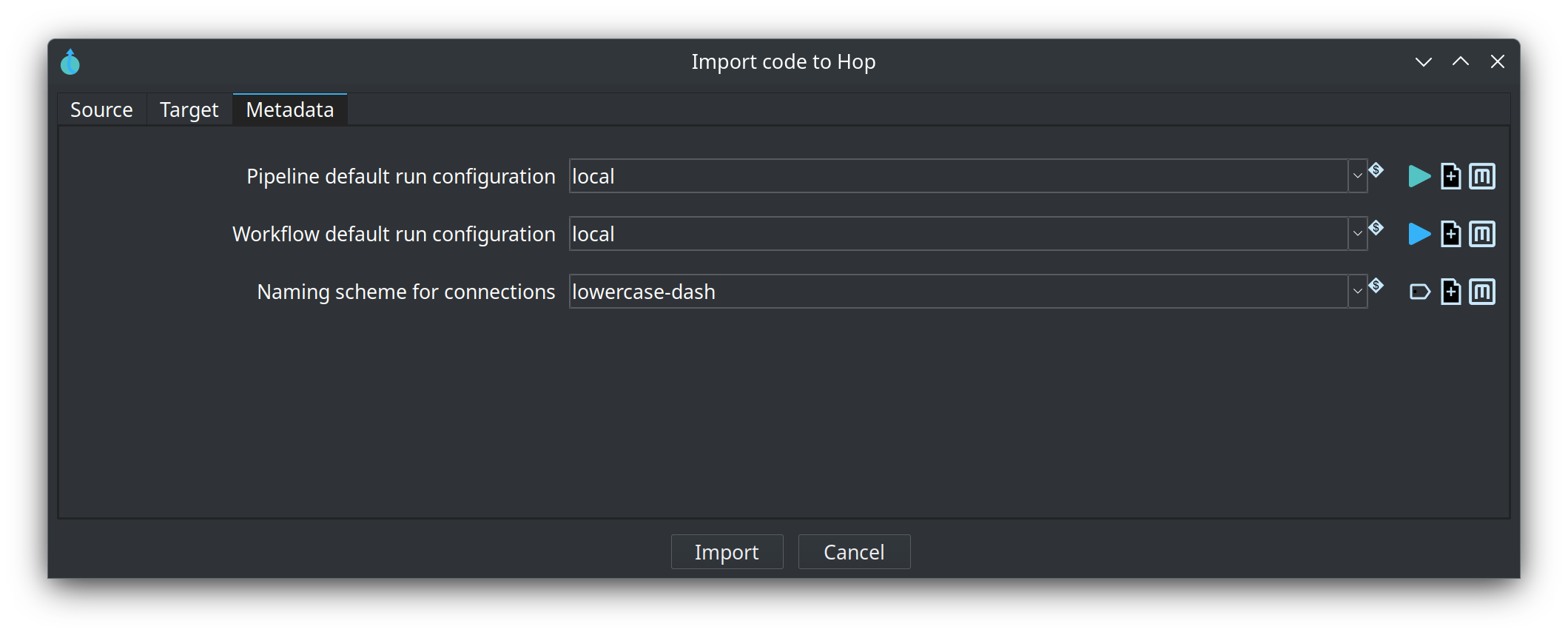
| Option | Description | Default |
|---|---|---|
Pipeline default run configuration |
The run configuration set as the default on imported pipelines. The line lists objects from the target folder and the current project. New and Edit stay in memory until you click Import, which writes the selected object to the target project’s |
- |
Workflow default run configuration |
The run configuration set as the default on imported workflows. Same in-memory-until-Import behaviour as the pipeline run configuration. |
- |
Naming scheme for connections |
Optional naming scheme applied to imported relational connection names (the connection metadata and every |
- |
After entering your import details, click the 'Import' button.
After a couple of seconds (even when importing large projects), you’ll be presented with a migration summary:
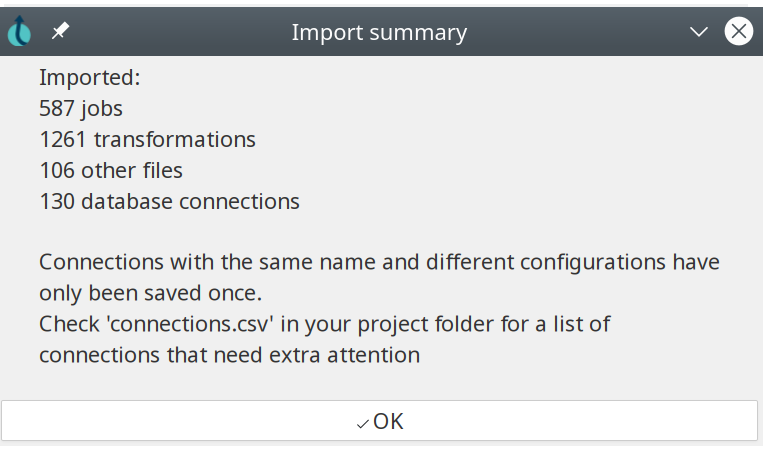
The migration summary shows:
-
number of jobs imported, and how many were skipped because the target file already existed
-
number of transformations imported, and how many were skipped because the target file already existed
-
number of other files imported, and how many were skipped because the target file already existed
-
number of variables
-
number of database connections
| A line is shown when that kind of file was imported or skipped. Items that were not available in the specified folders or files for this import will not be shown. Skipped files are left unchanged. |
When multiple database connections with the same name but different configurations were found (see 'Known limitations'), a connections.csv file will be created in the project folder.
This file contains a list of all jobs and transformations, with the connections they use.
Import from the CLI
The hop-import.sh/bat CLI tool lets you import Kettle/PDI projects from the command line.
Check the hop-import page for details.