
Projects and environments
So far you have been working in the default project, which is what Hop enables when you haven’t chosen anything else.
That is fine for a first pipeline.
It stops being fine the moment you want to share your work, run it on a server, or have a dev and a prd version of the same connection.
This chapter is the short version. Projects and Environments has the full reference.
What a project gives you
A project is a folder plus a project-config.json.
Grouping your work into one buys you three things:
- Portable paths
-
${PROJECT_HOME}always points at the project folder, so${PROJECT_HOME}/first-pipeline.hplresolves on your laptop, on a colleague’s machine and in a container, without anyone editing a path. You already used this in the Pipeline action. - A home for metadata
-
Database connections, run configurations and every other metadata object live in the project’s metadata folder. They travel with the project instead of sitting in your personal configuration.
- Something you can commit
-
A project folder is an ordinary folder of files. It goes into Git as-is, which is what makes review, history and CI possible.
An environment is the other half: it holds the values that differ between dev, test and prd - hostnames, credentials, file locations - as variables in one or more property files outside the project.
Same project, different environment, different target database, and no branching or editing of pipelines.
Create a project
The active project is shown at the bottom left of the Hop Gui status bar, next to a briefcase icon.
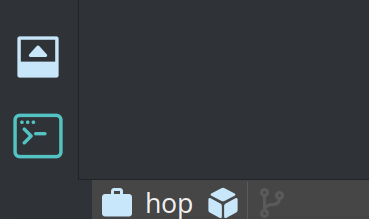
Click it and choose Add project…, then In a folder.

In the project properties dialog, fill in the Basic tab:
| Field | Value |
|---|---|
Name |
|
Home folder |
a new, empty folder of your choice |
Everything else can keep its default.
The Folders tab already points metadata, datasets and unit tests at ${PROJECT_HOME} subfolders, and the Parent project tab inherits from default, which is where the local run configurations you have been using come from.
Click OK. Hop creates the folder structure and switches to the new project.
| From version control clones a project straight from Git instead, which is usually how you pick up a project someone else created. |
Move your work into it
Copy first-pipeline.hpl and first-workflow.hwf into the new project folder, then open them from there.
Because you wrote the Pipeline action’s path as ${PROJECT_HOME}/first-pipeline.hpl rather than an absolute path, the workflow still finds its pipeline.
Nothing to edit.
That is the whole point, and it is worth doing once deliberately: run the workflow again from the new project and watch it work unchanged.
if you had typed an absolute path such as /home/you/first-pipeline.hpl, this is exactly where it would have broken. Prefer ${PROJECT_HOME} from the start.
|
Add an environment
The active environment sits next to the project in the status bar, with a cube icon. Click it and choose Add environment….
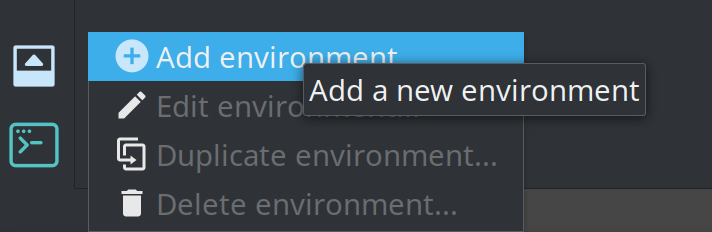
Give it a name and a Purpose (Development, Testing, Production and others are predefined), and point it at one or more property files holding your environment-specific variables.
Those variables then resolve anywhere Hop accepts one: in a transform field, a database connection’s hostname, a file path. Switching environment switches the values, and nothing inside the project changes.
What you learned
-
A project is a folder of files that can be shared, committed and deployed as a unit.
-
${PROJECT_HOME}is what keeps a project working somewhere other than the machine it was built on. -
Metadata belongs to the project, not to you.
-
Environments hold the per-stage values, so one project can run against dev, test and production.
| the git integration in Hop Gui works on the project folder, so you can commit, diff and browse history without leaving Hop. |