
Your first workflow
Why and When to Use a Workflow
Where pipelines do the heavy lifting of moving and transforming individual data rows, workflows manage the big picture. A workflow is your process coordinator: it decides what tasks run, in what order, and what happens when something succeeds or fails.
In a production data platform, you almost never run a pipeline completely isolated in a vacuum. Before a pipeline processes data, you might need to check if a database is reachable or whether an incoming file has arrived on an SFTP server. After the pipeline finishes, you might want to archive the input files, write an audit log, or send an email alert if an unexpected error occurred. Workflows handle all of these orchestration tasks.
Key things to remember before you build:
-
Actions are the steps: Each action performs an atomic job (e.g. running a pipeline, checking a file, sending an email).
-
Sequential execution: Unlike transforms in a pipeline, actions run one after another in sequence by default.
-
Conditional decision routing: Hops in a workflow are conditional gateways. You can follow different branches depending on whether an action succeeded (green hop) or failed (red hop).
| For an architectural deep dive into how workflows execute, the backtracking algorithm, and execution engines (Local, Remote, Load-Balancing), see the Workflows guide. |
In this chapter, we will build a workflow that orchestrates the pipeline you created in the previous chapter and takes different paths depending on whether the pipeline succeeded or failed.
Create a workflow
Click New in the main toolbar and pick Workflow, or use File → New → Workflow.
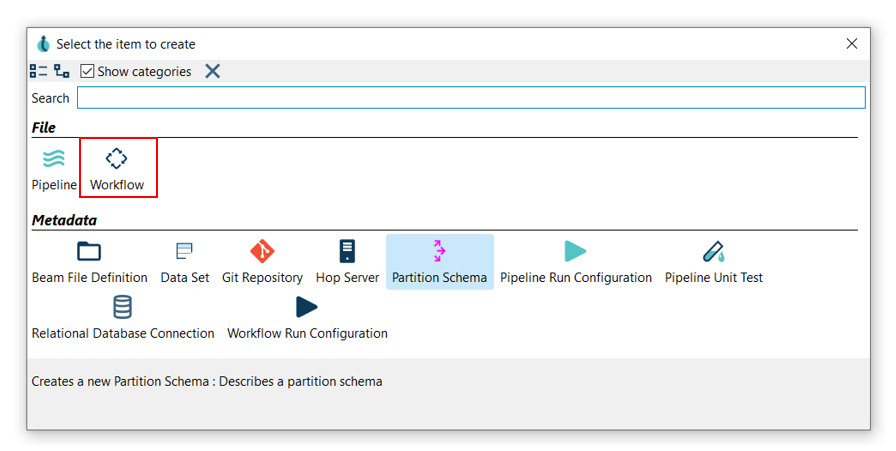
Your new workflow already contains one action.
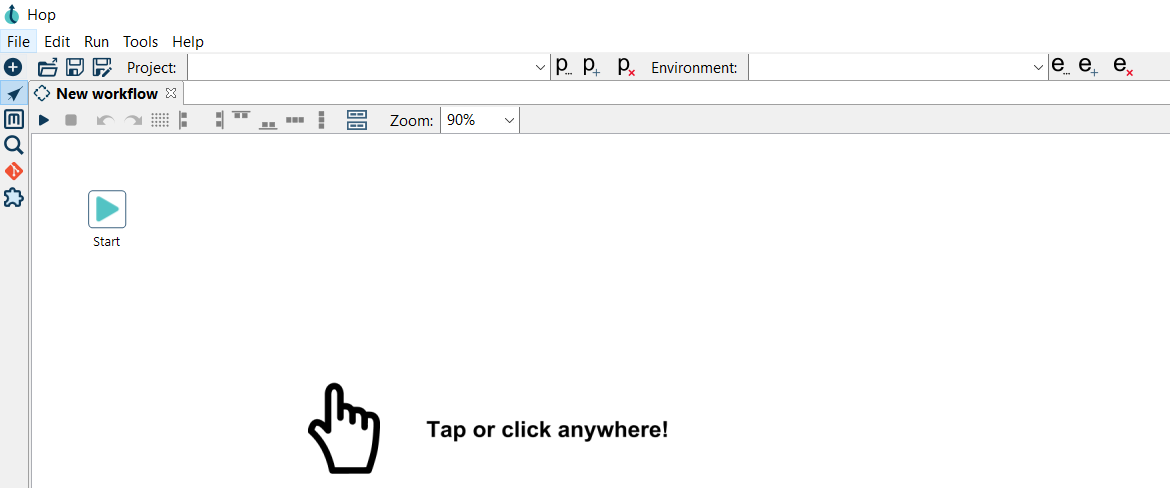
| Hop adds a Start action to every new workflow. It is where execution begins, and it is also where you configure a schedule if you want the workflow to repeat. |
Save the workflow as first-workflow.hwf, in the same folder as first-pipeline.hpl.
Run the pipeline from the workflow
Click anywhere on the canvas to open the context dialog, search for Pipeline and add the Pipeline action.
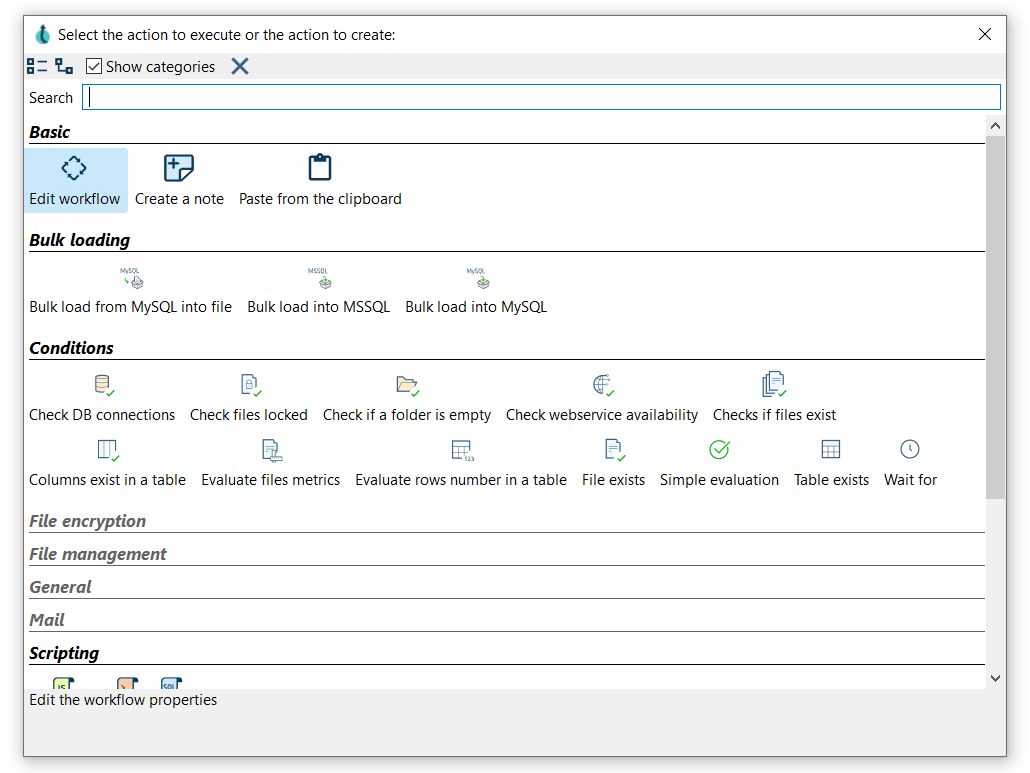
Open the new action and set:
| Field | Value |
|---|---|
Action name |
|
Pipeline |
|
This is the step the workflow exists for, so it is worth being precise about it: the Pipeline field is what ties the workflow to the pipeline you built. Use the Browse button if you prefer to pick the file, but note what Hop fills in.
${PROJECT_HOME} is a variable that points at the folder of the current project.
Using it instead of an absolute path is what lets the same workflow run on your laptop, on a colleague’s machine and on a server.
You’ll see more of this in Projects and environments.
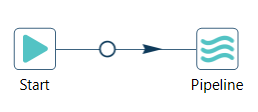
Now connect Start to run first pipeline.
Creating a hop works exactly as it does in a pipeline:
-
shift-drag from one action to the other, or
-
scroll-drag, or
-
click the action and use the Create hop
 button in its context dialog.
React to the outcome
A workflow that only runs one thing is not doing much. Let’s make it respond to what happened.
Add two Write to log actions:
| Action name | Log level | Log message |
|---|---|---|
|
Basic |
|
|
Error |
|
Create a hop from run first pipeline to report success, and a second hop from run first pipeline to report failure.
By default both hops are green: they fire when the action succeeds.
Right-click the hop to report failure and choose Failure hop.
It turns red.
You now have the basic shape of every production workflow:
Start  ──▶  run first pipeline  ──✔──▶  report success
                     │
                     └───────────✘──▶  report failure
Right-clicking a hop gives you three choices:
| Hop type | Colour | When the next action runs |
|---|---|---|
Unconditional hop |
black |
always, whatever the previous action did |
Success hop |
green |
only when the previous action succeeded |
Failure hop |
red |
only when the previous action failed |
This is the main thing workflows give you that pipelines cannot: pipelines have no notion of "and if that fails, do this instead".
Run the workflow
Save with CTRL-S, then press F8 or click Run.
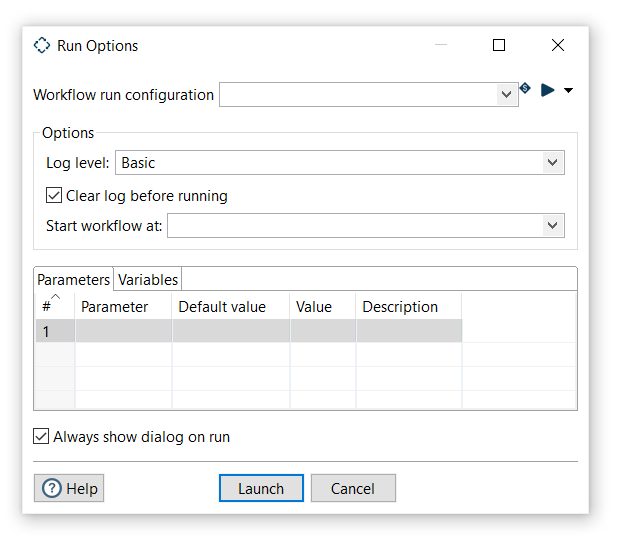
A workflow run configuration decides where the workflow runs.
A local one is created for you the first time you start Hop Gui.
Select it and click Launch.
The Execution Results panel works like the pipeline one. Its Metrics tab lists one line per action, in the order they ran, with the comment, result and reason for each.
You should see Start, run first pipeline and report success execute, and report failure skipped.
In the Logging tab you’ll find your own message:
report success - Orders file written.Prove the failure path works
An error path you have never seen run is a guess, not a safety net.
Open run first pipeline and change the Pipeline field to a file that does not exist, for example ${PROJECT_HOME}/nope.hpl.
Run the workflow again.
This time run first pipeline fails, report success is skipped and your error message appears in the log.
The workflow itself is marked as failed, which is what a scheduler or a Hop Server would pick up.
Set the Pipeline field back when you’re done.
What you learned
-
Workflows run actions in sequence; pipelines run transforms in parallel.
-
A Pipeline action is how a workflow runs a pipeline, and
${PROJECT_HOME}is how it stays portable. -
Hops in a workflow are conditional, and that is where error handling lives.
-
Every new workflow starts from a Start action, which is also where scheduling is configured.
| check the full list of actions for everything you can orchestrate: files, mail, conditions, scripts, other workflows, and more. |
You have now built and run both Hop file types. Next, we’ll put them in a project so the paths keep working outside your own machine.