
Run, Preview and Debug a Pipeline
Running a Pipeline
Running a pipeline to see how it performs can be done by completing one of the following tasks:
-
Using the Run
 icon
icon -
Select Run and Start execution from the top menu
-
Pressing F8
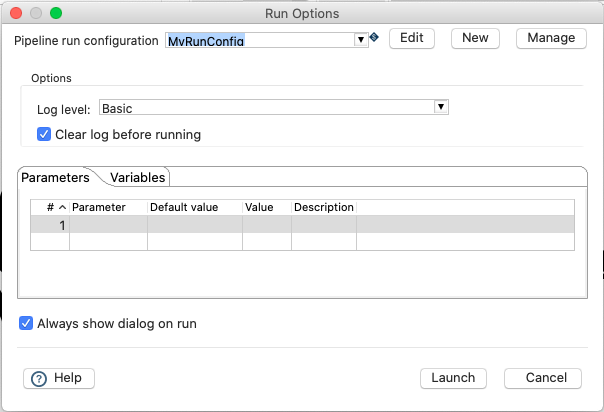
In the pipeline run dialog, hit the 'New' button in the upper right corner to create a new 'Pipeline run configuration'.
In the dialog that pops up, add 'Local Pipeline' as the pipeline configuration name and choose the 'Local pipeline engine' as engine type.
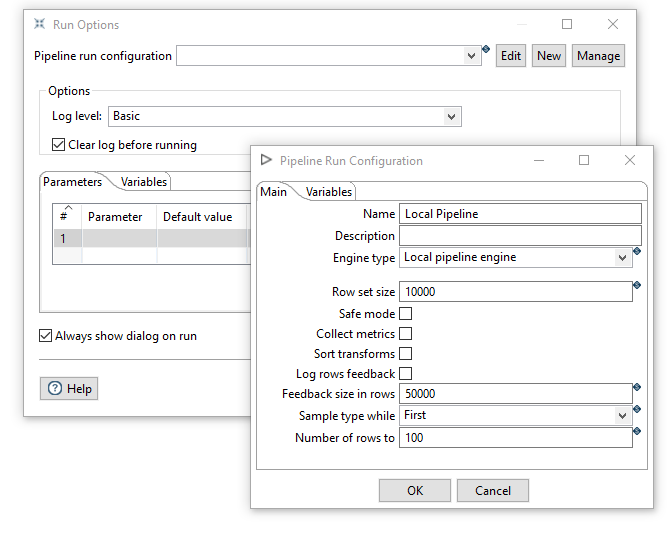
Click 'Ok' to return to the pipeline run dialog.
Choose the logging level as described below.
| LogLevel | Description |
|---|---|
Nothing |
Do not record any logging output. |
Error |
Only record errors in logging output. |
Minimal |
Only use minimal logging. |
Basic |
This is the default logging level. |
Detailed |
This logging level gives a detailed logging output. |
Debugging |
Results in a very detailed output for debugging purposes. |
Row Level |
Logging at row level. |
If the pipeline has parameters, give them a value on the Parameters tab of this dialog, or leave the value empty to use the default value. See Working with parameters.
Make sure your configuration is selected and hit 'Launch'.
When a pipeline has run successfully, a check mark is displayed in the upper right corner of each transform. With more than one copy, that check is shown only when every copy of the transform has finished. Until then the corner shows how many copies are done. See Specify copies.
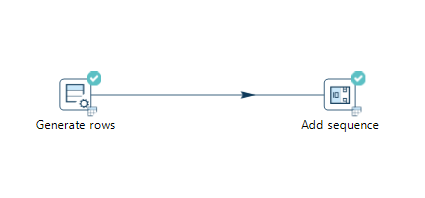
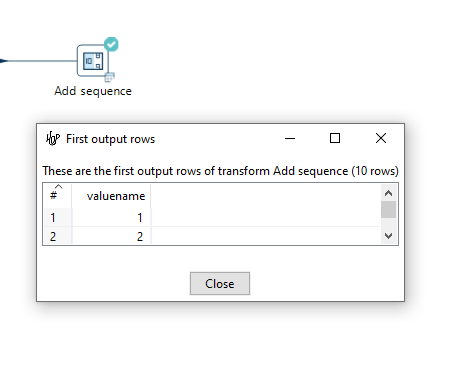
The transforms also show a little table icon, giving you access to a preview of the results of that transform.
When a pipeline fails, a red triangle is shown in the upper right corner of the failed transform. Hover your mouse over the red error triangle to take a quick peek at the error message. The full stacktrace is available in the logs. Check pipeline error handling to learn about how you can handle errors in your pipeline gracefully (which is not necessarily what you want).

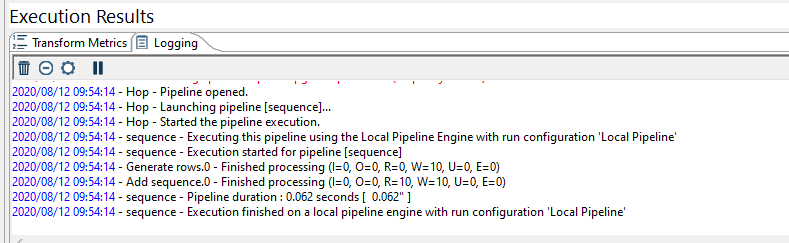
After each run the execution results are displayed in the panel on the bottom of your window. The Execution Results contains two tabs:
-
Transform Metrics
-
Logging
The Transform Metrics tab displays metrics per transform.

Following metrics are displayed:
| the metrics in this table can be captured and processed in a standard pipeline (e.g to write to a database table or Apache Kafka topic) with a Pipeline Log |
|
the metrics available in this table depend on your Pipeline run configuration. The Local pipeline engine always shows these metrics in real-time. |
| Metric | Description |
|---|---|
Copy |
The transform copy these metrics apply to. See Specify Copies for more details |
Input |
Number of rows read from an input source like files, relational or NoSql databases etc |
Read |
Number of rows coming from previous transform |
Written |
Number of rows leaving this transform toward next transform |
Output |
Number of rows written to an output target like files, relational or NoSql databases etc |
Updated |
Number of rows updated by the transform in an output target like files, relational or NoSql databases etc |
Rejected |
Number of rows that were rejected by the transform and diverted to an error handling transform |
Errors |
Number of errors in the execution of this transform that were not diverted to an error handling transform (marked by a red error triangle on the transform) |
Buffers Input |
Number of rows in the input buffer for this transform (can only higher than 0 during execution) |
Buffers Output |
Number of rows in the output buffer for this transform (can only higher than 0 during execution) |
Duration |
The execution duration for this transform |
Speed |
The execution speed in rows per second for this transform. This is close to the number of rows processed (written or output) by this transform divided by the duration (not exact because of rounding in the duration) |
Status |
The transform status; one of Empty, Initializing, Running, Idle, Paused, Halting, Halted, Stopped, Finished or Disposed |
The logging tab displays the log of the pipeline according to the log level chosen on execution.
Preview and debug a pipeline
To inspect pipeline data while controlling how execution pauses, use Preview & debug (toolbar, Run menu, or transform actions). This opens a single dialog for preview rows and optional breakpoint behavior.
You can start it in any of these ways:
-
Using the preview
 icon on the pipeline toolbar
 -
Select Run and Preview & debug from the top menu
-
Select Preview & debug output from the transform action menu
-
Click on the tiny bottom right icon after running the pipeline
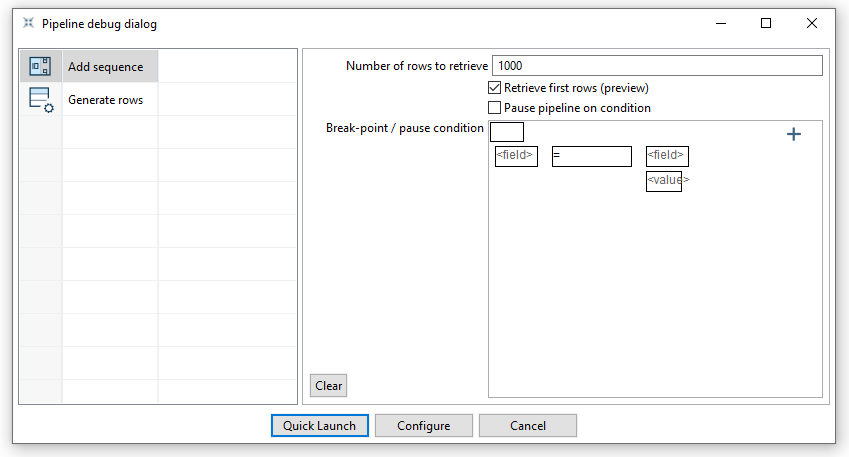
In the dialog, choose the transform whose rows you want to inspect. Set how many rows to retrieve (Retrieve first rows), and optionally enable Pause on breakpoint and define a condition so the pipeline pauses when that condition matches a row. When finished press Quick Launch. To change the pipeline run configuration, click Configure.
The collected rows are shown in the preview window when execution pauses or finishes.
Table views
Preview windows (and other table grids in Hop Gui) can contain a large number of columns. A table view is a named subset of those columns, in the order you want to see them. Hidden columns stay in the data and are still exported, copied or saved. A view can also carry filters on its columns: rows that do not match are hidden while the view is applied, and come back with Show all columns. Row filters are offered when browsing data, such as Show rows. A grid that edits configuration leaves Add filter and Remove filter disabled and does not hide rows for a saved filter, so confirming the dialog still keeps every row.
Open the Table views dialog from the table toolbar icon, from the row context menu, or from the column header context menu.
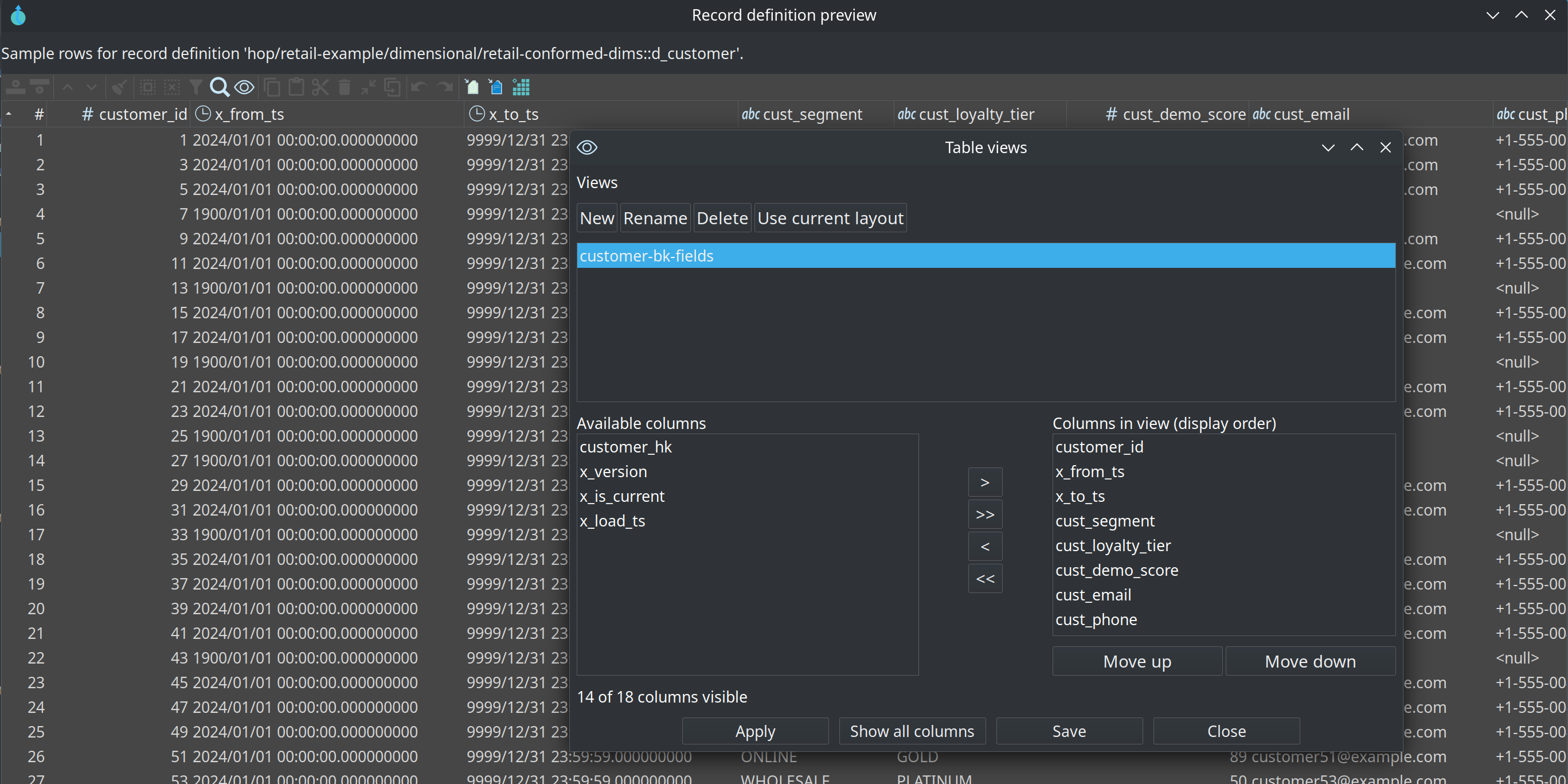
In the dialog:
-
The dialog opens with every column in Columns in view (columns on screen first, then the rest) and with any filters already applied from the column header. Use current layout copies the columns that are visible now.
-
Move fields between Available columns and Columns in view, and use the arrow up and arrow down buttons in the middle to set the display order.
-
Add filter picks a column and then shows the unique sorted values of that column, where you select the values to keep. An
<null>entry covers empty values. The filter shows up asColumn-Name : value1,value2,value3in the Applied filters list, and Remove filter takes the selected filters out again. -
A column with more than 500 unique values asks for confirmation before the values are listed.
-
Apply shows only the selected columns, in that order, and hides the rows that do not match the applied filters. Filtered columns get a filter icon in their header.
-
Show all columns restores the full table: every column and every row comes back.
-
Save stores the view, including its filters, so you can reuse it later.
Views are stored per project in the Hop audit folder and are matched by column name.
A view such as customer-bk-fields can be applied to any table that has those field names, not only the preview where you created it.
The column header context menu can hide that column, add a filter on it, or remove the filter it already has. Remove filter stays disabled until that column has a filter.
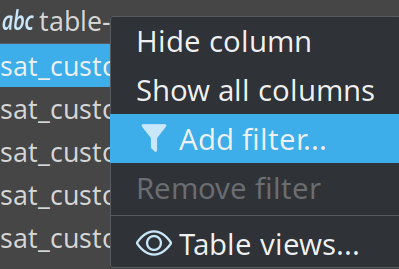
Add filter lists the unique sorted values of that column, the same way the dialog does. Select the values to keep and press OK.
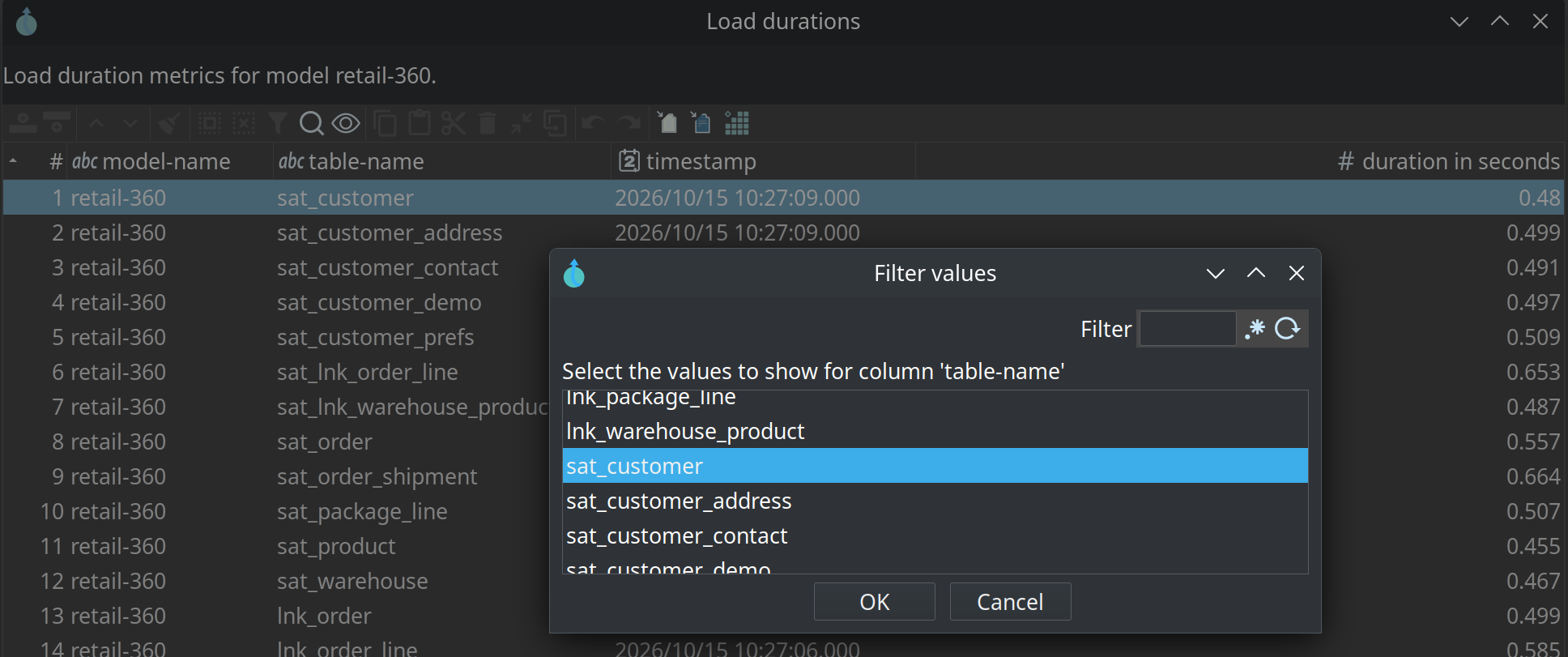
The filter is applied straight away. The column header shows a filter icon, and only the matching rows stay visible.
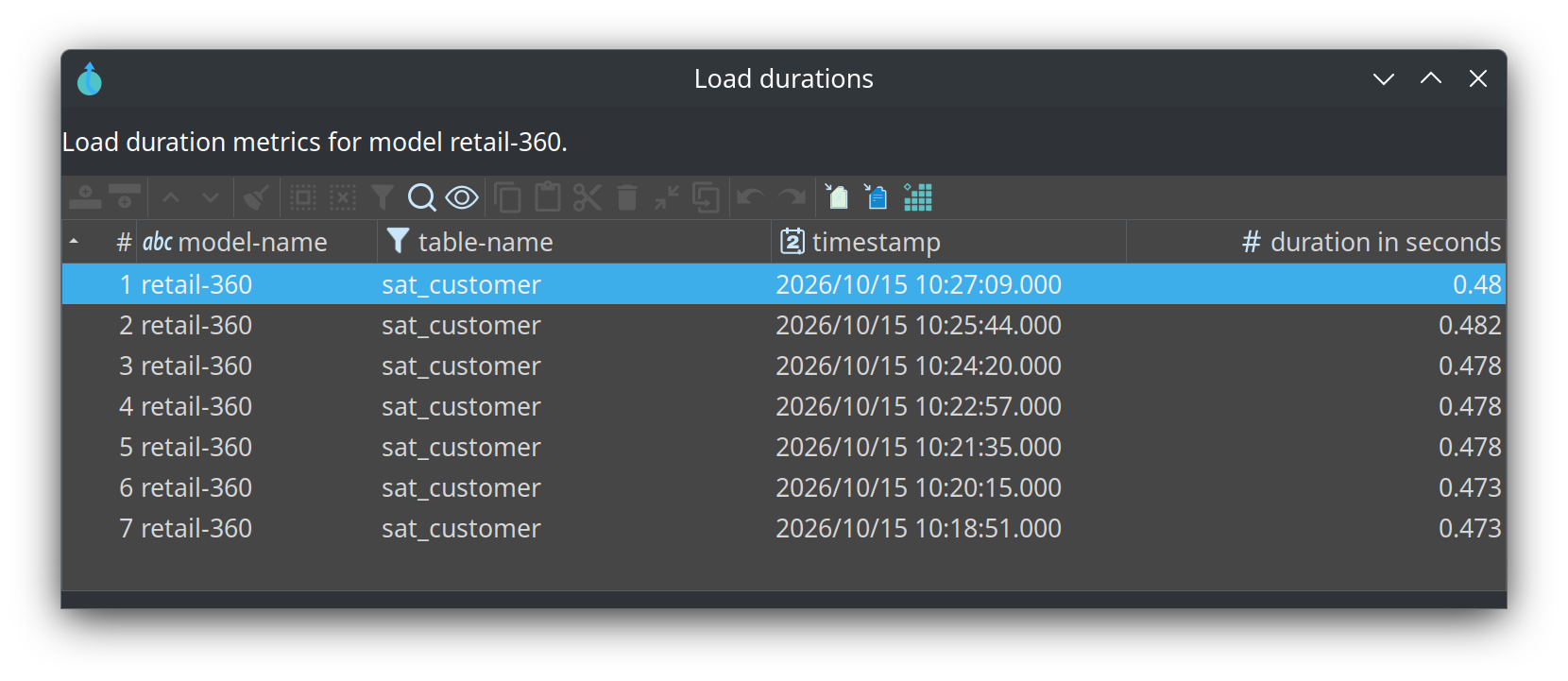
You can also drag headers to reorder them (desktop Hop Gui). Those one-off changes can be captured with Use current layout and then saved as a named view.
The table toolbar itself can be turned on or off with Show a toolbar above tables in the Configuration perspective.