
Search
Icon: 
Keyboard shortcut: CTRL-F (macOS: Cmd-F)
Menu: Edit → Find
Description
Hop Gui search finds matches across your open files, project files (pipelines, workflows, and other searchable types), metadata, variables, and global menu actions.
Search is available as a quick Search Everywhere popup and as a fuller results view in the bottom dock (Show all results).
| For large or batch searches from a terminal (including remote SSH sessions), use the hop-search command-line tool. It is better suited to huge hit lists than the GUI. |
Search Everywhere popup
Open search with CTRL-F or Edit → Find. Type in the search field to filter results (search-as-you-type can be turned off in settings).
-
Aa — case-sensitive matching
-
.*— treat the query as a regular expression -
 — open Search settings (limits and options; see below)
The footer shows the status text and, at the bottom right, the search location. All loaded locations searches open files and the active project, including configuration files of the active environment only. Choose a single location to search only that one. All projects searches every configured project you are allowed to open, and the configuration files of each of its environments. Opening a hit from another project asks to switch to that project first.
Project → Search projects… (the project indicator at the bottom left, under Edit project…) opens this dialog with All projects already selected.
Results are grouped by Open files and Project files, then by type (Pipeline, Workflow, metadata type, and so on). Use the arrow keys to move, Enter to open the selection, and Escape to close the popup.
Show all results hands the same query to a search tab in the bottom dock for deeper browsing (details panel, open selected item). + on that panel’s tab bar opens another search tab.
What is searched
| Scope | Notes |
|---|---|
Open files |
Pipelines, workflows and text files open in Hop Gui tabs |
Project files |
Registered searchable file types under the project home (pipelines, workflows, SQL, XML, YAML, CSV, JSON, and similar), subject to size and options below |
Metadata and variables |
Connections, run configurations, variables, and other metadata known to Hop |
Actions |
Enabled main-menu commands whose labels match the query |
Object names are always considered. Content matching (including line-level hits in text files) only runs when the query is long enough (default: 3 characters), so short prefixes while typing do not flood the UI with data-file matches.
Search settings
Open the gear on the Search Everywhere bar (or on the results panel toolbar), or configure the same options under the Configuration perspective → Plugin options → Search.
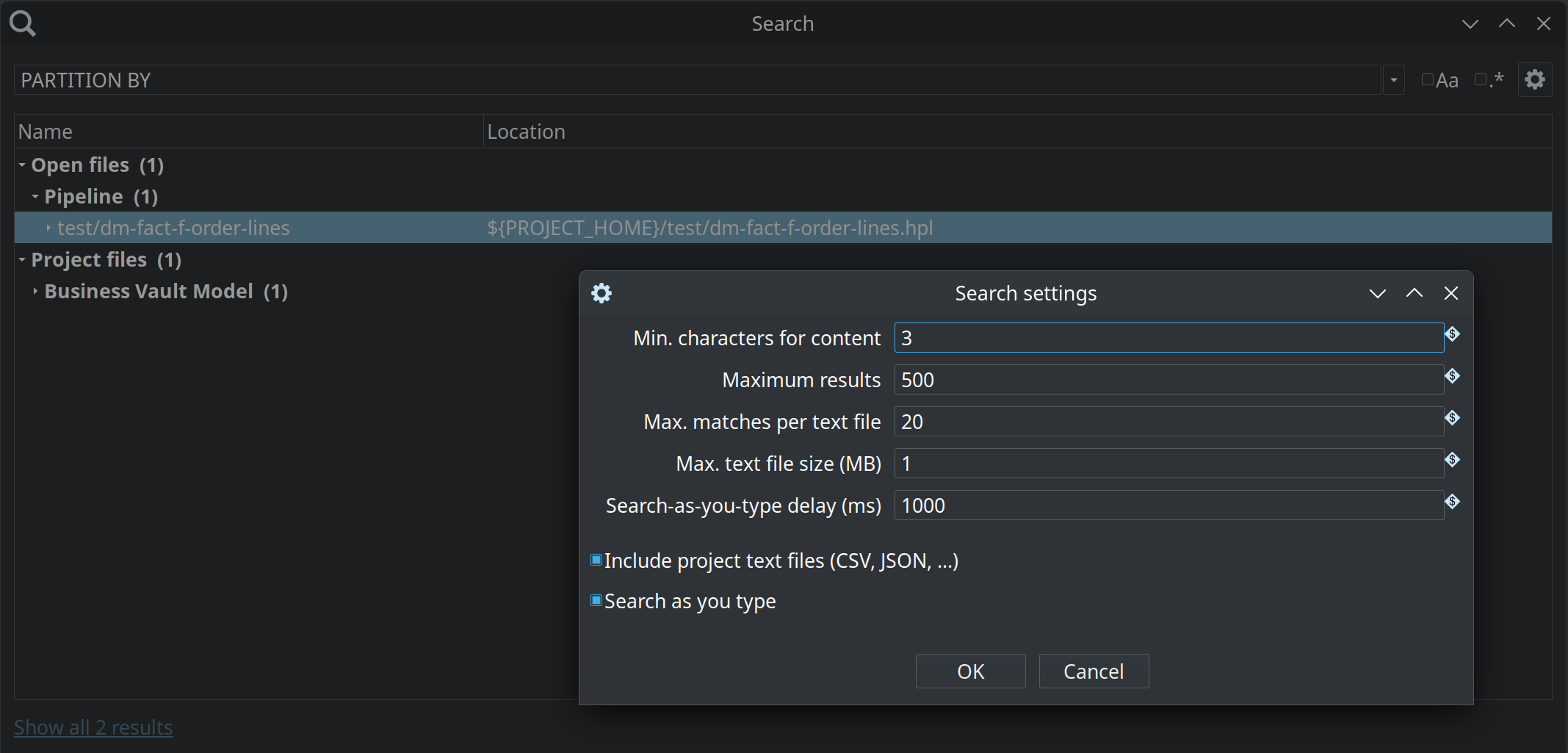
| Option | Description | Default |
|---|---|---|
Min. characters for content |
Minimum query length before field and text-file content is searched. Names still match for shorter queries. |
|
Maximum results |
Hard cap on how many results Hop Gui builds for one search. Further matches are not collected so the UI stays responsive. |
|
Max. matches per text file |
Stop scanning a single text file after this many matching lines. |
|
Max. text file size (MB) |
Skip text files larger than this size for content search. Million-row CSV/JSON files should be searched with dedicated tools or hop-search, not loaded into Hop Gui. |
|
Search-as-you-type delay (ms) |
How long to wait after the last keystroke before running a live search. |
|
Include project text files (CSV, JSON, …) |
When enabled, project text files are content-searched (within size and match limits). Open text files remain eligible either way. Disable to focus on pipelines, workflows and metadata. |
yes |
Search as you type |
When enabled, search runs automatically after the delay above. Enter always runs a search immediately. |
yes |
Settings are stored in the Hop configuration (hop-config.json) under the search key and apply to both the popup and the results panel.
Full results panel
From Show all results, or when Hop Gui opens a search tab for references, the bottom dock shows a toolbar (query, case/regex, refresh, settings), a grouped results tree, and a details side panel. The footer has the status text, the same search-location selector as the popup, and Open. Select a hit and use Open to jump to the matching object. Show all results keeps the location that was selected in the popup.
Refresh reloads searchable objects from disk and open tabs after you change project files outside Hop Gui.
Related
-
hop-search — CLI search for projects and environments
-
Configuration perspective — other Hop Gui options